Showing posts with label work. Show all posts
Showing posts with label work. Show all posts
Tuesday, May 25, 2010
Very Briefly: CEIC
Some people have asked me about CEIC. I will not be attending this year unfortunately. I hope those of you who are currently there are having a blast though :-)

Sunday, February 14, 2010
GNB's Timeline EnScript
A former colleague of mine, Geoff Black, has a pretty cool timeline EnScript (zip file) available on his website. I have been playing around with it and have meant to blog about it for a while...
The contents of the zip are as follows:
Timeline Report.EnPack
Timeline Report.EnScript (actual code)
Timeline_Report_README.pdf
Timeline_Report_WHATSNEW.pdf
Include\GNB_HTMLlib.EnScript (library file)
Include\GNB_XMLlib.EnScript (library file)
I must say that it's nice that Geoff has given us the code to his Timeline script so that one can modify as desired. It's also nice that he includes README and WHATSNEW files so you can have something to reference for past and present versions.
Simply unzip these items (without the pdfs) into your EnCaseX\EnScript folder and you are ready to go. You can run the script by either double clicking the EnPack or the EnScript, just make sure to add a disk image to the case first ;-). When you run it you will see the following:

There are a lot of options you can choose. Here's a closeup of the interface itself:
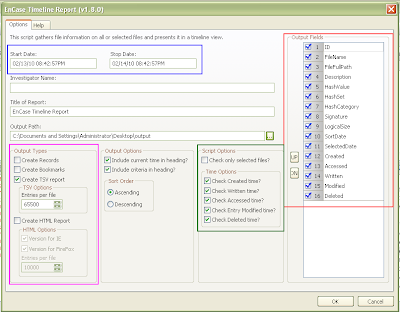
You can pick a certain time period with a start and stop date for the timeline (boxed in blue). You can pick the type of output you want (boxed in pink), whether you want Records, Bookmarks, a Tab Delimited report (TSV), how many entries you'd like in each TSV file and whether or not you would like an HTML report better suited for IE or Firefox. There are more Script Options and Time Options (boxed in green) that allow you to select files you want in the timeline report (default is all files) and which time entries you are interested in seeing (default is all). You can modify the order to the Output Fields (boxed in red) for the TSV file or remove fields that are not of interest. Other fields are self explanatory.
While the script is running you can see the progress bar at the bottom right. If you choose the HTML report option you may end up with several HTML files (depending on how many files are selected and how many entries per file you have selected) and if this is the case each file is named in order for example:
TimelineReport-FF.html
TimelineReport-FF2.html
TimelineReport-FF3.html
and so on... You can see an example report below:

The latest change is highlighted, but you can see that some files might have the same time stamp for different fields. In this case the file will be listed twice, once with Created highlighted and once with Accessed highlighted (from the README).
You can check out some of Geoff's other EnScripts and CEIC presentations at his website: http://www.geoffblack.com/forensics.
The contents of the zip are as follows:
Timeline Report.EnPack
Timeline Report.EnScript (actual code)
Timeline_Report_README.pdf
Timeline_Report_WHATSNEW.pdf
Include\GNB_HTMLlib.EnScript (library file)
Include\GNB_XMLlib.EnScript (library file)
I must say that it's nice that Geoff has given us the code to his Timeline script so that one can modify as desired. It's also nice that he includes README and WHATSNEW files so you can have something to reference for past and present versions.
Simply unzip these items (without the pdfs) into your EnCaseX\EnScript folder and you are ready to go. You can run the script by either double clicking the EnPack or the EnScript, just make sure to add a disk image to the case first ;-). When you run it you will see the following:

There are a lot of options you can choose. Here's a closeup of the interface itself:

You can pick a certain time period with a start and stop date for the timeline (boxed in blue). You can pick the type of output you want (boxed in pink), whether you want Records, Bookmarks, a Tab Delimited report (TSV), how many entries you'd like in each TSV file and whether or not you would like an HTML report better suited for IE or Firefox. There are more Script Options and Time Options (boxed in green) that allow you to select files you want in the timeline report (default is all files) and which time entries you are interested in seeing (default is all). You can modify the order to the Output Fields (boxed in red) for the TSV file or remove fields that are not of interest. Other fields are self explanatory.
While the script is running you can see the progress bar at the bottom right. If you choose the HTML report option you may end up with several HTML files (depending on how many files are selected and how many entries per file you have selected) and if this is the case each file is named in order for example:
TimelineReport-FF.html
TimelineReport-FF2.html
TimelineReport-FF3.html
and so on... You can see an example report below:

The latest change is highlighted, but you can see that some files might have the same time stamp for different fields. In this case the file will be listed twice, once with Created highlighted and once with Accessed highlighted (from the README).
You can check out some of Geoff's other EnScripts and CEIC presentations at his website: http://www.geoffblack.com/forensics.
Yahoo Messenger EnScripts
There are a couple of publicly available Yahoo Messenger EnScripts/EnPacks out, such as:
Yahoo Decoder in unallocated by Lance Mueller
YahooMessenger-Parser by Paul Bobby
Pretty useful scripts, however they don't handle right-to-left languages like Hebrew and Arabic. Here are some before pics from my test run with Hebrew:
Lance Mueller's script's output:

Paul Bobby's scripts' output:

As you can see, (well if you know what Hebrew letters are supposed to look like) the letters come out as some gobbeldy-gook. This is something I've been meaning to comment on for a while, having written various chat EnScripts at the beginning of my GSI employment. I have just gotten around to it now... The "encryption" method is the same for all unicode languages in that it is a byte-by-byte xor with the local username. The problem is that the encoding becomes distorted when it is just saved in a string. For example the letters ש and ל with UTF-8 encodings d7a9 and d79c respectively become c397 and c2a9 (it is left as an exercise for the reader to figure out why). So here comes a solution that I have used in the past.
The EnScripting language has a class called MemoryFileClass, which allows you to have in memory buffers that you can treat as files. You can create them, open them, read and write to them as you would any other file. So the idea is simple enough: write to a memory buffer as you decrypt the message and then extract the message after all decryption has taken place. This is accomplished by adding a couple of helper functions to Paul Bobby's code:
Now we can just call the functions as appropriate when decrypting and outputting the messages. You can see the correct output after this modification below (yeah, the conversation is lame and is just a test ;-):

The complete modified EnScript is available on the GSI forum (registration required):
A thread on the GSI forum with Paul Bobby's fixed EnScript
Yahoo Decoder in unallocated by Lance Mueller
YahooMessenger-Parser by Paul Bobby
Pretty useful scripts, however they don't handle right-to-left languages like Hebrew and Arabic. Here are some before pics from my test run with Hebrew:
Lance Mueller's script's output:

Paul Bobby's scripts' output:

As you can see, (well if you know what Hebrew letters are supposed to look like) the letters come out as some gobbeldy-gook. This is something I've been meaning to comment on for a while, having written various chat EnScripts at the beginning of my GSI employment. I have just gotten around to it now... The "encryption" method is the same for all unicode languages in that it is a byte-by-byte xor with the local username. The problem is that the encoding becomes distorted when it is just saved in a string. For example the letters ש and ל with UTF-8 encodings d7a9 and d79c respectively become c397 and c2a9 (it is left as an exercise for the reader to figure out why). So here comes a solution that I have used in the past.
The EnScripting language has a class called MemoryFileClass, which allows you to have in memory buffers that you can treat as files. You can create them, open them, read and write to them as you would any other file. So the idea is simple enough: write to a memory buffer as you decrypt the message and then extract the message after all decryption has taken place. This is accomplished by adding a couple of helper functions to Paul Bobby's code:
bool WriteBuffer(MemoryFileClass &file, char msg) {
  file.SetCodePage(CodePageClass::ANSI);
  int temp = msg;
  file.WriteBinaryInt(temp, 1);
  return file.IsValid();
}

void ReadBuffer(MemoryFileClass &file, String &msg) {
  file.SetCodePage(CodePageClass::UTF8);
  file.Seek(0);
  file.ReadString(msg);
}
Now we can just call the functions as appropriate when decrypting and outputting the messages. You can see the correct output after this modification below (yeah, the conversation is lame and is just a test ;-):

The complete modified EnScript is available on the GSI forum (registration required):
A thread on the GSI forum with Paul Bobby's fixed EnScript
Monday, April 20, 2009
Briefly: CEIC 2009
I will attend and present at the CEIC conference in Orlando, FL. The agenda is available online and it looks like there will be a lot of interesting talks/labs to see and participate in. It should be fun.
Subscribe to:
Posts (Atom)