Tuesday, July 29, 2008

Cuil Not So Cool

So after reading about the new search engine called Cuil, I couldn't wait to try it out. I didn't realize it had gone live until after reading about how much it failed. Most people complained about not being able to pronounce ``Cuil'' in spite of lots of publicity that it is pronounced ``Cool'' so maybe some people didn't bother to read. There were also disputes about what, if anything, Cuil returned during searching. So I decided to give it a try myself.

I decided to search for penguin. According to the right hand side of Cuil, there are 66,229,028 results for penguin.


First of all, the website design is really nice. I know that doesn't matter as much, but I had to say that :-) I also like the columns, the short snippets and the pictures to the side. I have to agree with Cuil that showing a picture can help the user determine relevance (FAQ #7).

There's even some tabs and a pull down menu across the top of the search to help narrow down your interest, such as ``Penguin Books'', ``Penguin Classics'', ``Penguin Putnam'', ``Linux Penguin'' etc.. Ok, that's nice.

Now for the vanity searches. First off, I'm not some conceited schmuck who likes to google herself all the time, but I know what should pop up when my name is entered. Here it goes: there are 3,619,749 results for the search term ``jamie levy'' (without quotes).

Ok, so something of mine is not on the first page like on Google. Big deal. There's something of mine on the second page:
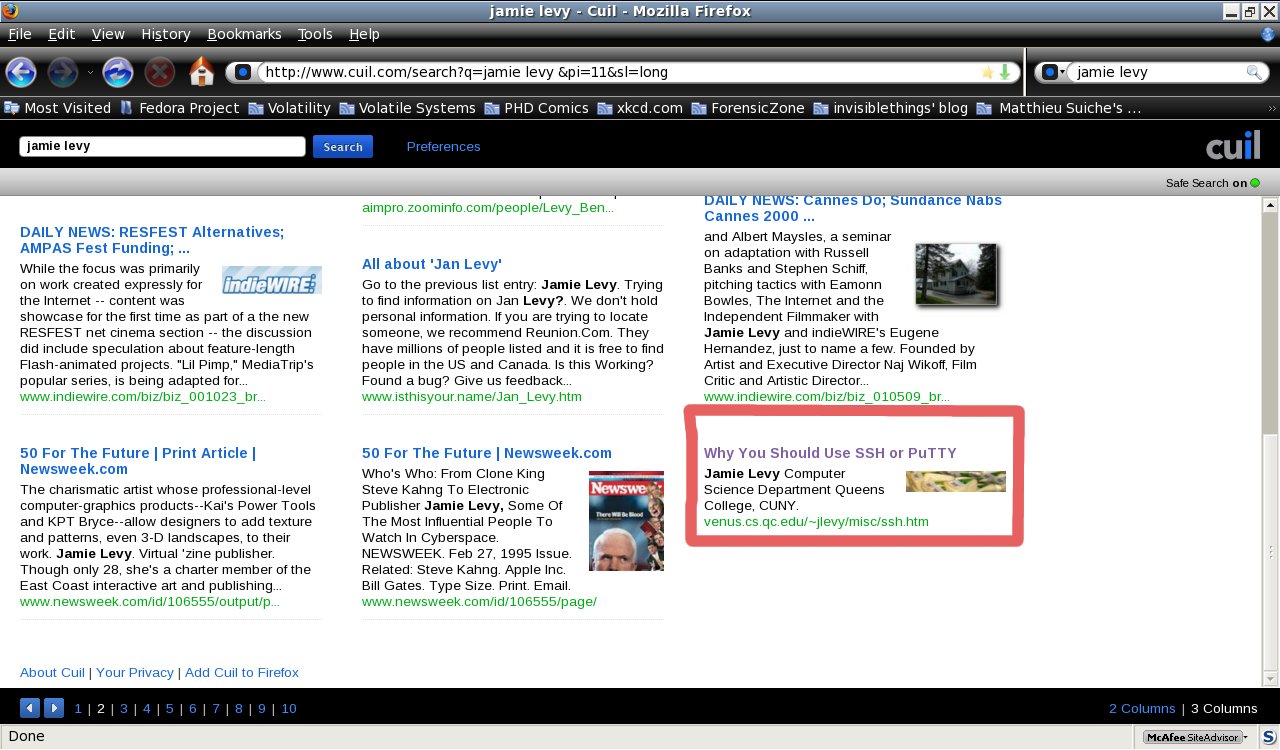


It's a tutorial of mine. It's kind of old, and it's kind of buried in my site... I thought I would at least see the index of my site if anything... Also, I'm not really sure what that picture is next to my page. I know I didn't put it there.

Ok, on the third page I see the same tutorial above as well as another OLD tuturial of mine that I forgot to take offline after I rewrote it. So that's bizarre, why would the first resulting tutorial repeat to the second page? What is that picture next to it? How did they find the old Unix tutorial?:
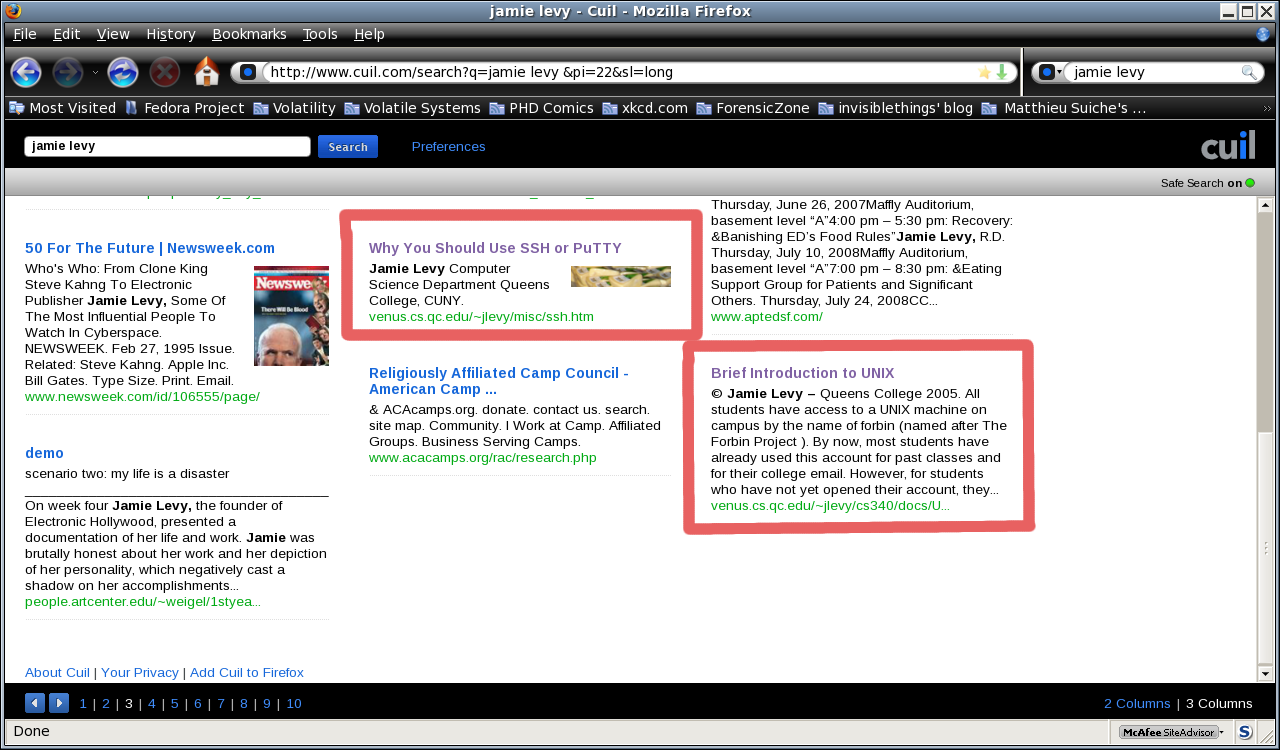


This seems to be a pattern, however as I found more repeats of these results and finally my index page on the fourth page of results. However, there is finally a correct picture next to the wireshark tutorial:
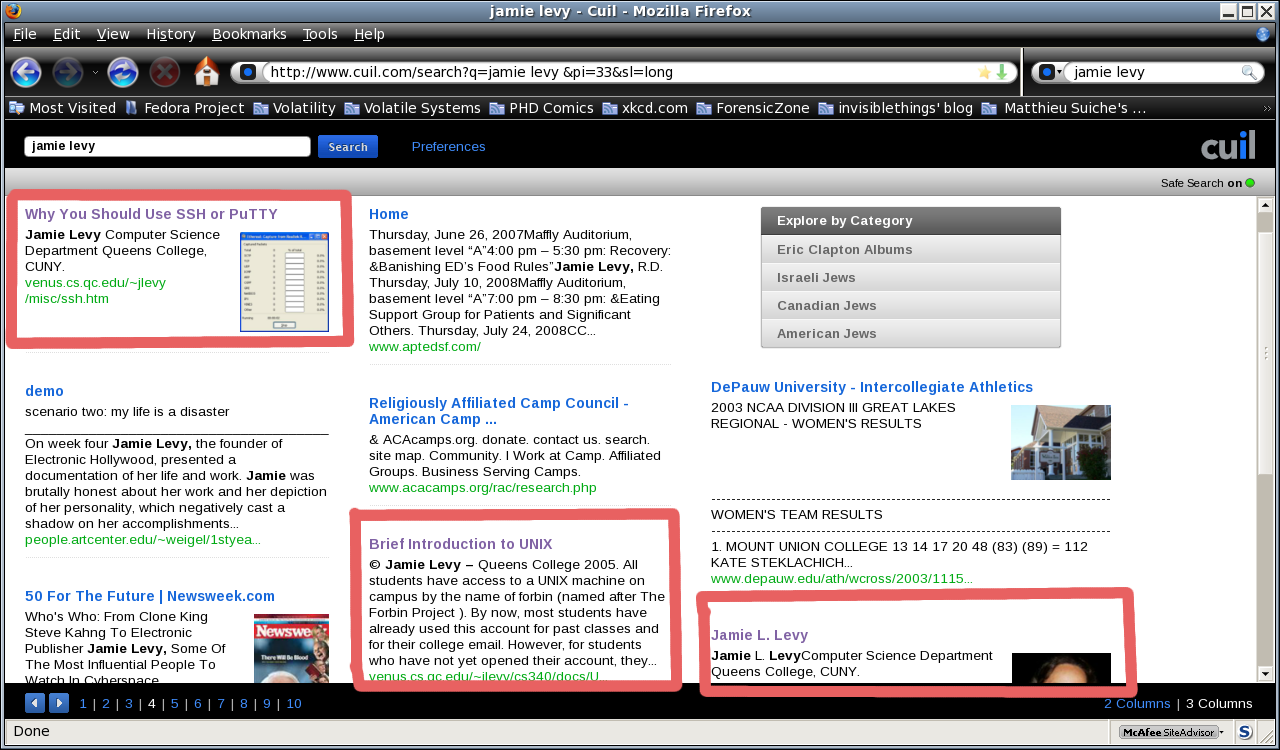


After looking just little bit more I found another old course page of mine, which repeats as well:


Ok, so what happens if I decide to narrow down my search and look for myself at the place where I work? Cuil only shows four results (though it claims there are 43,752 results), three of which we have already seen above. Look next to the Unix tutorial, do you find anything curious there? I did:
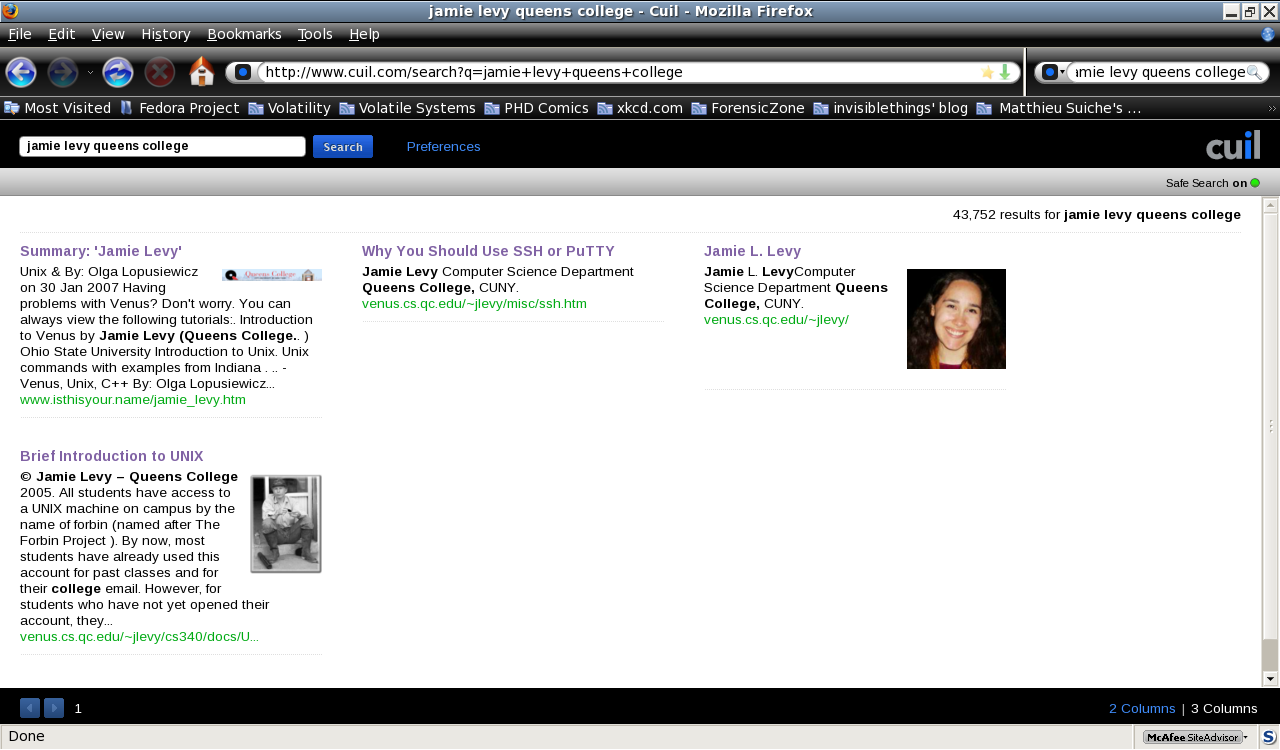


Who is that man in the picture? He's so mysterious.... I know I didn't put him there! Here's a closeup:



Bizarre is all I can say... Does his picture seem relevant to Unix? I wouldn't think so... but it seems like some of these pictures are just random. Also the stuff that Cuil pulls up seems as if it's from some older snapshot. I haven't quite figured it out.

Well, I won't bore you with details of other people I ``Cuil''ed, but I thought it was interesting that I couldn't find my past adviser at all when there are 815,000 pages in Google related to his name.


I guess he isn't ``Cuil'' enough... :-)

Monday, July 21, 2008

The Last Hope (afterwards)

Man, The Last Hope was a blast. I'm still trying to get over it ending...

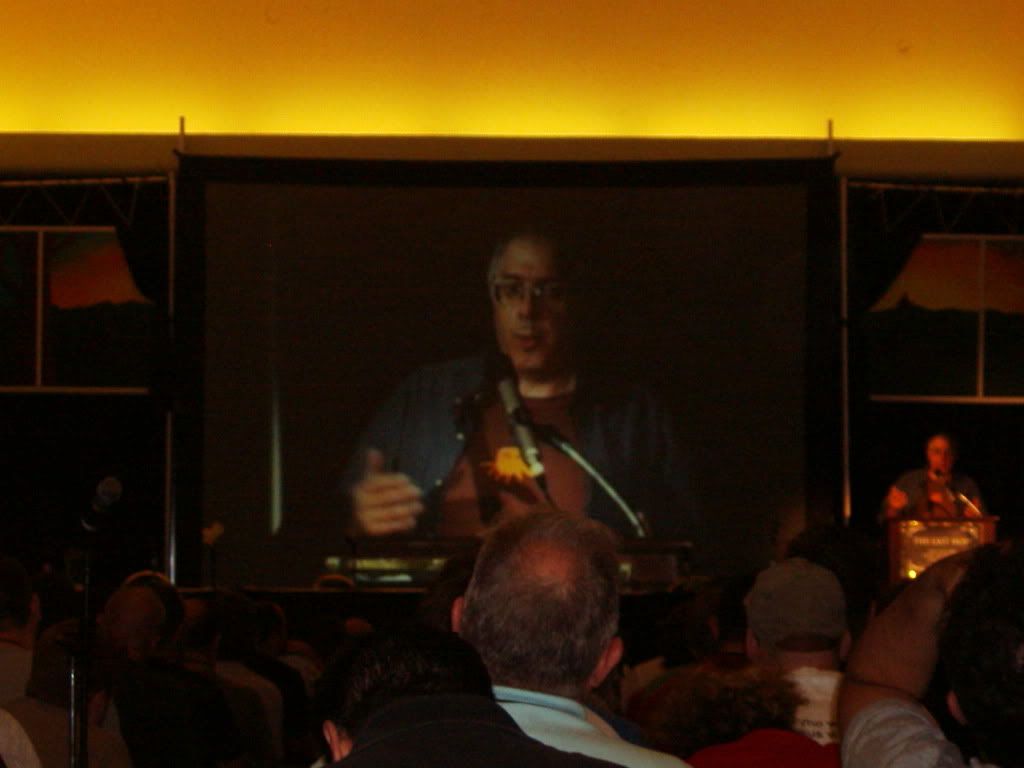
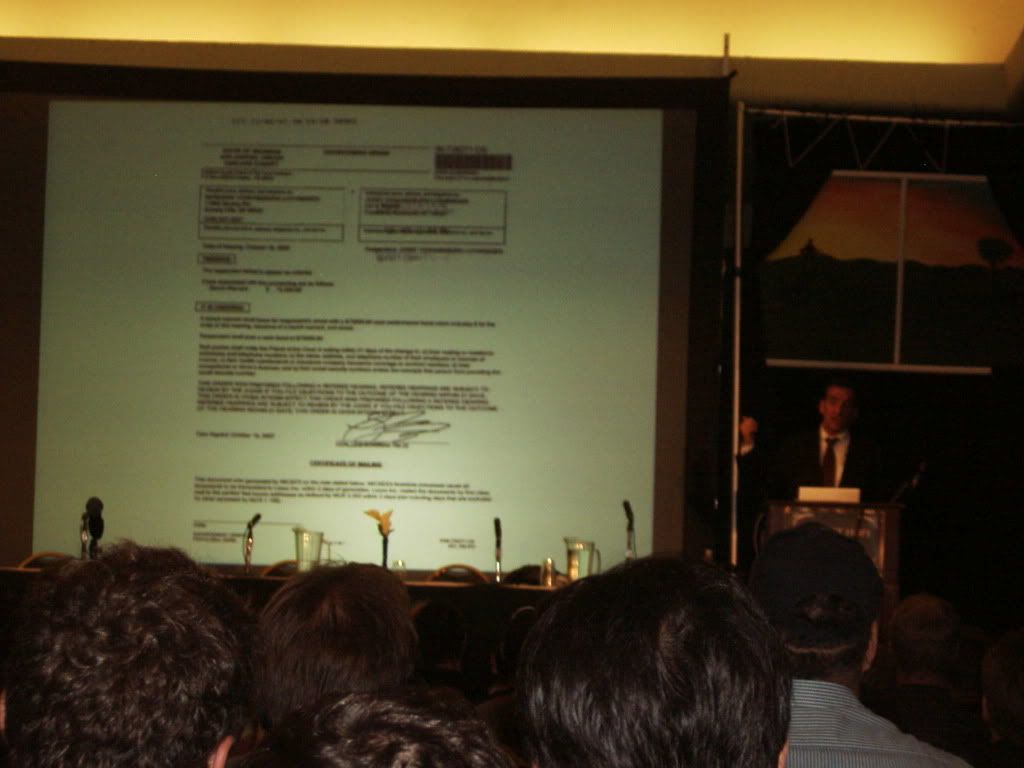
I went with my good friend Matthew. I saw several talks of interest. The first talk I went to was ``Botnet Research, Mitigation and the Law.'' It was really interesting to hear from a lawyer as to what can and cannot be done when investigating these botnets. I have to find his email, however, because there were some more questions I wanted to ask him about this.

The next talk I went to was Kevin Williams Death Star Threat Modeling talk. It was really good and really funny. It was funny to see security models explained in a Star Wars way...

I really enjoyed the presentation by Lady Ada and pt. It was really interesting to see all of the things they could do with hardware. I was inspired :-) It was funny that they had their phone jammer there to block cell calls during the talk. I was kinda surprised how many cell phones went off during talks prior to that.

I also saw the ``Hacking Cool Things with Microcontrollers'' talk by Mitch Altman. It was interesting. He seems like an interesting guy with his cool colored hair :-) I liked his TV-be-gone product.

After a nice break, Matthew and I went to see the Cold Boot Memory Forensics talk. During the talk, the crowd was informed that some code was released as well. This was a very interesting talk. I'll have more to say on this one later...

The last talk I went to the first night was the Hacking FOIA talk. I missed some good talks that night, but there was not much I could do. I just couldn't stay.

Alright, I'm not going to list all of the other talks I went to, but a few. As for the pics, forgive me, I didn't have my usual camera with me so these didn't turn out as well...


The Steven Levy talk was quite funny. I liked the part where he talked about interviewing Steve Jobs.


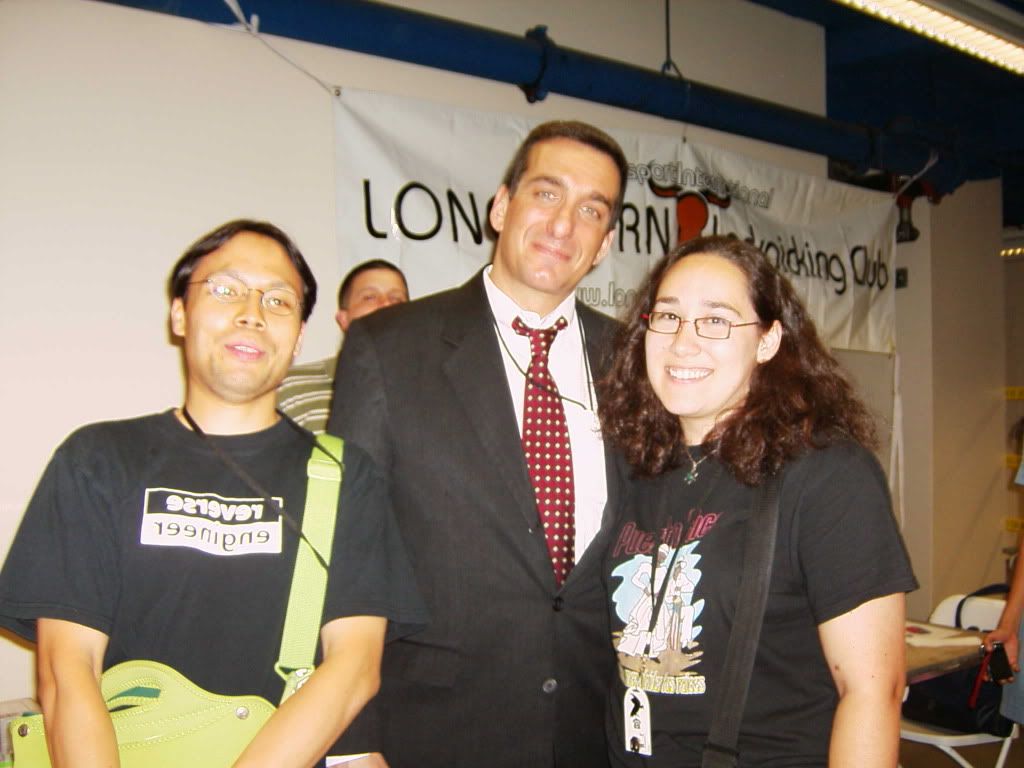
Steven Rambam's talk was LONG... 3 hours scheduled... and it went into overtime with the questions... and a lot of it was already covered in his other talk. Still, I had a good time. There's something about his assertiveness that I can't help but appreciate.


I got to meet some interesting people like Bernie S:


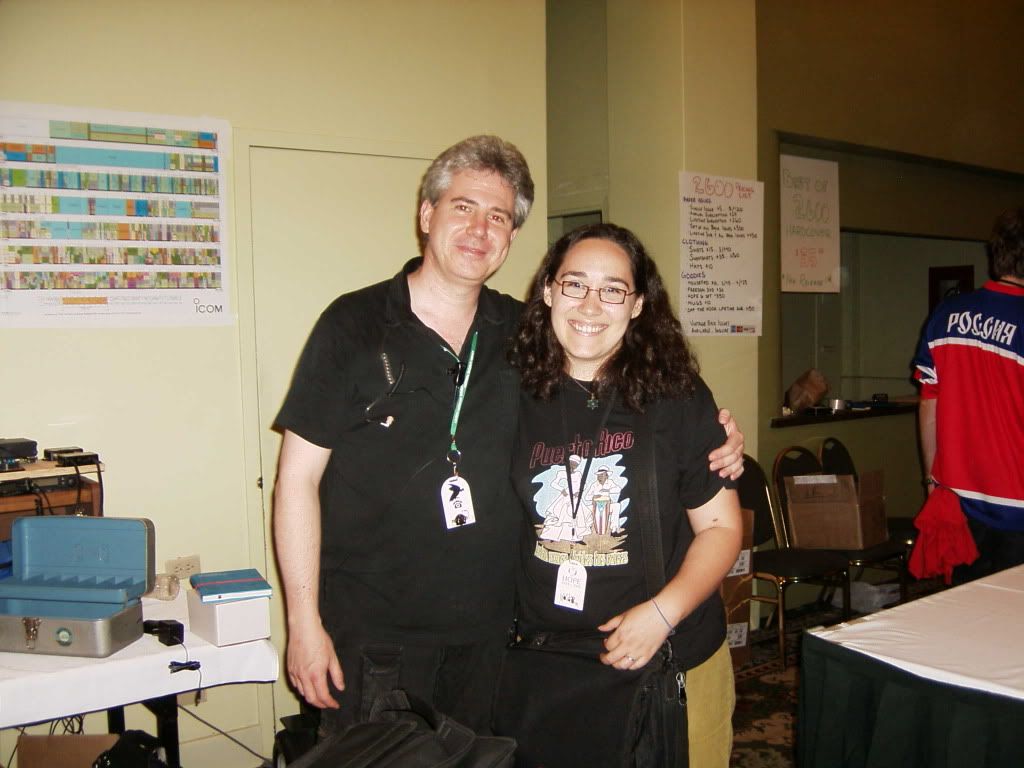
and Emmanuel Goldstein:


(who looks as if he's plotting things here...)

I must say, I really enjoyed the social engineering panel. It was really funny, and useful to prove just how much information you can get and how some people are a little too trusting. Maybe that shows that some people are still basically good... I'm not sure.

Even though I had planned to stay for Kevin Mitnick's talk, it was really late and things had been pushed back by almost an hour. I just couldn't stay any longer with DH at home alone...

On the last day, I have to say that the most interesting talks I went to were the two Pen Testing talks: (Pen testing using LiveCds by Thomas Wilhelm and Pen testing using Firefox by DaKahuna and ThePrez98), Adam Savage and Postal Hacking. All but the Postal Hacking talk were packed full. (i'll write more on this later...)

Edit: You can find torrents of some of the talks here.

Tuesday, July 15, 2008

Linux Memory Forensics

I knew something good would come out of the DFRWS forensic challenge. This is really great. I just had to say something about it :-)

I would have liked to have worked on the challenge myself, but with a full-time teaching schedule and other projects, just couldn't fit in the time. I was anxious to see what would happen this year, however.

Good job, guys :-)

Monday, July 14, 2008

PTK 0.2 Released

PTK labs has released beta 0.2. Improvements include searching for strings in slackspace and a new installer. Now installation will be somewhat easier. You simply have to unzip the files into your apache owned folder (var/www/, /var/www/htdocs, /var/www/html etc). Make sure the permissions are set correctly. Open your browser and go to http://127.0.0.1/ptk/install.php You will see the installation page and can just fill it out as needed.

Edit 10/18: I've decided to add a patch to address the comment below.
Apply it as follows:


patch -b install.php install_diff.txt

Friday, July 11, 2008

Maze Generator

I was looking for some files I had backed up from my old laptop when I came across a disk that contained old schoolwork. It was kind of fun looking at these projects I did as an undergraduate. So I decided to release them online. One project that was particularly fun was a maze generator using disjoint sets. It creates a graphical presentation of the maze and also prints it out to a text file of the user's choice.

I thought it might be fun for someone to play with.... but if not, no harm done.

An update can be found here

Wednesday, July 09, 2008

Windows DNS bug fix can impair firewalls

It all started after downloading Microsoft's latest updates. Though this is a valid fix, if you running a firewall like Zonealarm you may not be able to connect to the internet after the latest update.

I found out the hard way this morning. It all started with phone calls from a couple of friends complaining about network connections. At first I thought it might just be an ISP issue, but then DH installed the latest updates on his computer. After he rebooted all connectivity was lost. I still had internet on my Linux box, so it prompted me to call some people back and find out if they had recently updated. Sure enough they had. A brief news search turned up the answer. Hope this doesn't affect too many people, but I think it will....

I don't think that you should uninstall the MS hotfix like some are saying, but you might have to use another firewall product or use a workaround to survive. Perhaps it's time to move on to something else...

The Last Hope


The Last Hope (2600) is coming soon - July 18-20. It costs $75 for three days and is hosted at the Hotel Pennsylvania.

I'm excited to go. They have a lot of interesting talks this year. The Cold Boot talk should be interesting. Botnets, Law issues, Voip, baggage cams, RFIDs.... well there are just TOO many interesting things to write about here :-) I can't wait.

Sunday, July 06, 2008

PTK on Fedora 8

Wow, this was a painful install... and I'm not even sure if it's completely over :-/ Though I haven't been able to get this working completely with all of my practice images, PTK looks somewhat promising. Update: PTK works see update at the end.

Anyway, before you get started, you should make sure to install all of the packages you need:


mysql
mysql-server
php
php-mysql
php-mbstring
httpd
Sleuthkit


In addition, according to the help forums, you also need the following libraries for Sleuthkit (I must have had a previous version because I haven't had to do this before):


afflib
libewf


The following package is not *required* but can help you a lot if you are not used to command line management of mysql databases:


phpMyAdmin


With all of the above packages, just do a ``yum install''. After you start MySql and httpd you should be set. I have already gone over how to set up MySQL and will not repeat it here. If you want to make sure that everything has installed correctly, you can see the php information by created a file called info.php in the /var/log/www/html directory that contains:


<?php
phpinfo();
?>


To see the information, open a browser and go to http://127.0.0.1/info.php. Scroll down until you see the following:


Now, download the PTK sourcecode. After you extract it, you should have a folder that contains a license file, Setup file, PTK.sql file and another tarball. Make sure that the md5 hash values are correct:


$ cat md5sums.txt
76b10e2f1c8bfd25a7128e1ca4f3009a ptk-beta_0.1.tar.gz
15d83f58161f816db660c65cf12c717e PTK.sql
e7cebc317dda69f2df81856118d924f3 Setup
$ md5sum -c md5sums.txt
ptk-beta_0.1.tar.gz: OK
PTK.sql: OK
Setup: OK


I tried just using the Setup file and failed miserably. I would get the nice welcome screen, but couldn't log in to PTK. Then I tried the manual install shown in the tutorial... It also didn't work. Things were getting installed in the wrong directories, even after I had told it where to install correctly using the original Setup script. Also, the Setup script looks for files called md5 and sha1, which are called md5sum and sha1sum on my machine...

So after analyzing the Setup file, I wrote a patch and finally got PTK working which you can find here. To apply the patch type:


patch -b Setup fedora-patch.txt


This will make a backup of the Setup file in case things go awry.

Make sure that you pay attention to output of the Setup script and check to see if there are any errors. If things go well, you should see the following screens:


If everything goes ok, you should have PTK installed in your /var/www/html/ptk directory. You can start it by going to: http://127.0.0.1/ptk. You have to log in using the ``admin'' account, and hopefully you don't forget your password you used for this!


Issues All but the last issue are resolved:
I am not yet sure of the cause of all of these issues, but I thought I would list things here.
  • fatv images do not seem to be recognized and I am unable to browse the file system at all.
  • I am unable to get an initial correct hash of the image without running the browser as root
  • After the initial hash is taken, verification yields an incorrect hash (see pic below) and I suspect it is hashing the symbolic link and not the image itself. The top md5sum hash is correct, the second verification one is not.
  • If you have SELinux working, you will have to use workarounds to let this program work (which is an SELinux thing, not a PTK thing exactly)
  • When you search for images, you are initially directed to the /var/log/www/ptk/images folder, which is fine. If you add a disk image there, you do not see it. You have to go back 2 directories and then forward again before the disk image appears


Edit: PTK Works

As I wrote previously, I managed to get PTK installed on Fedora 8. I had a few issues with seeing the images at the end, however. It was a permissions problem. I can't believe I missed that. But it works and it seems fun. So if you are installing PTK on Fedora, follow the earlier instructions and use the patch I made and then check the permissions of the ptk folder to make sure that it is owned by apache (or whatever user you have as your webserver). If it isn't then do a recursive chown:


# chown -R apache.apache /var/www/html/ptk


I have only a couple of complaints: The folders are kind of hard to see on the left hand side, but there may be some way to remedy that. Also, I'm still having the problem of having to go back two folders and then forwards when importing an image, but I guess it's not that bad... Still, PTK has some nice options, like the gallery view, and the interface is nice. So far I like it :-)

Wednesday, July 02, 2008

MDD

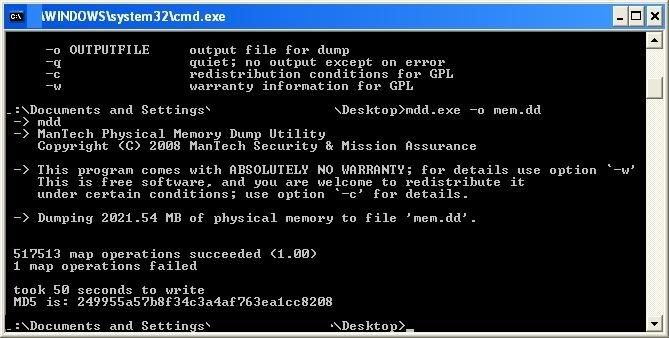
I'm finally writing about trying MDD on XP SP 3:


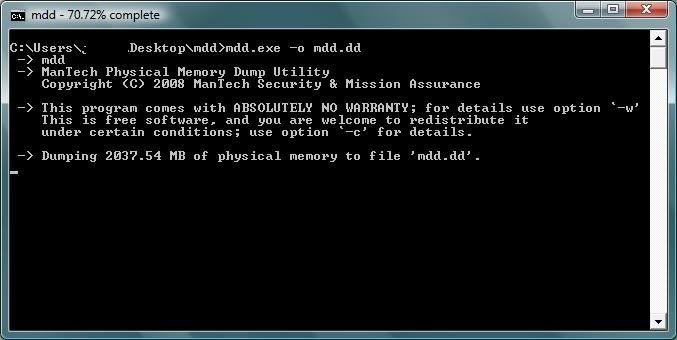
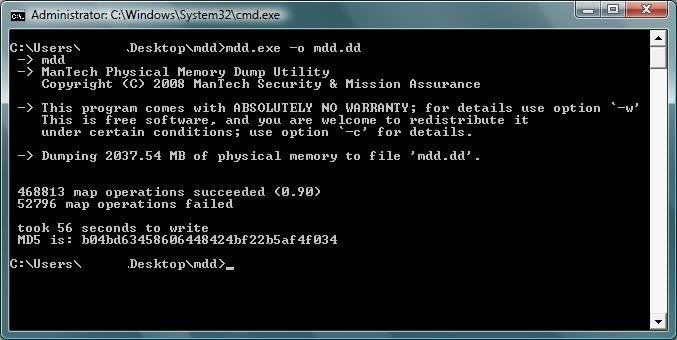
And Vista:


It works nicely and in the case of dumping XP memory, you can do analysis with Volatility afterwards. (Note: Make sure you are running the cmd as Admin.) Another nice feature is that it gives you an md5 hash of the memory image after it finishes dumping.

I also tried win32dd on Vista. It worked fine as well. (I forgot to take a screen shot but will get one soon). I was surprised at first because it seemed to work much faster than MDD, since it gave me the all clear and appeared to have finished. I then checked the size of the dump and it was too small, so at first I thought it had failed. Later I checked the dump and it was 2 GB as needed, so it did work, but must have finished dumping in the background.

Microsoft Office Binary File Format Documents

Microsoft Office Binary File Format Documents were recently released. Should be useful to someone.

Wednesday, June 25, 2008

PyFlag Installation on Fedora 8

So I finally decided to be brave and install PyFlag.

First you have to get the source code (more info on wiki or compile tutorial):


# yum install darcs
$ darcs get http://www.pyflag.net/pyflag


After this, you will have a folder called pyflag. If you look at the install instructions from the PyFlag site, you can see that there are several packages that must be installed before installing PyFlag. Most of these can be found in yum repos, but under different names (items in parenthesis are the debian package names):

python-dateutil
clamav
clamav-server (clamav-daemon)
mysql
mysql-devel
mysql-server
file-devel (libmagic-dev)
pexpect (python-pexpect)
python-imaging
python-mysqldb (manual install)


# yum install python-dateutil clamav clamav-server mysql mysql-devel mysql-server file-devel pexpect python-imaging


After installing all of these packages, you must initialize mysql:


# /sbin/chkconfig mysqld on
# /sbin/service mysqld start
# mysqladmin -u root password 'new-passwd'


You must use quotes around the new-passwd you choose, and don't forget what it is!

You must also setup clamav-server so it will work. Make sure you know where everything is installed, because things get funky with clamav and Fedora:


# rpm -q --filesbypkg [packagename]


Where [packagename] is replaced by the package(s) you installed. I went ahead and installed all of clamav packages just to be safe. Two files of interest are the daemon file itself and the configuration file. My locations are:


/usr/sbin/clamd
/usr/share/doc/clamav-server-0.92.1/clamd.conf


This is annoying, because when you run the clamd daemon, it says it can't find the clamd.conf file in the appropriate place: /etc/clamd.conf So you can add a symbolic link to the real location:


ln -s /usr/share/doc/clamav-server-0.92.1/clamd.conf /etc/clamd.conf


You'll have to figure out how to set up your own clamd.conf file.

Ok, at this point you are able to install PyFlag:


$ cd pyflag
$ sh autogen.sh
$ ./configure
$ make
$ su -
# make install


Make sure that you have no errors when running configure, make and make install. Now, before running PyFlag, you must set up the configuration file to point to the mysql.sock file. Fedora places the mysql.sock file in a different location than the default (/var/run/mysqld/mysqld.sock). So open up the configuration file using your favorite editor:


$ vi ~/.pyflagrc


Change the line that says:


dbunixsocket=/var/run/mysqld/mysqld.sock

to


dbunixsocket=/var/lib/mysql/mysql.sock


Notice that ``run'' is changed to ``lib'' and the `d' is absent from the end of mysql. You are now set.

Also make sure that PyFlag points to the clamav socket (for example):


clamav_socket=/var/run/clamd.d/clamd.sock


If everything goes well, you can then set up PyFlag:


$ pyflag


Follow the instructions on the website for setting up pyflag by going to http://127.0.0.1:8000.

There was only one other thing I changed. Since I already have a service listening on port 8000, I changed the port in the configuration file:


httpserver_port=7000


I'll have a post later after I've played around with this for a while...

Tuesday, June 24, 2008

Gateway GM5420 Desktop: Vista to XP

I should have written this back when I converted the machine and it was still fresh. I'll write it up as best I remember now, however.

So back in November I bought a Gateway GM5420 Desktop . It came with Vista, which I was more than willing to try. It remained a Vista machine, but was barely used until May. DH hated Vista and refused to adapt. I wasn't really all that pleased either. The only thing I really liked about the machine was the ATI Video card, but even then, we don't watch that much TV to keep it around just for that... So we decided to make the machine a dual boot for Vista and XP.

There was one big problem: XP doesn't support SATA drives by default. After searching the Gateway website, it became clear that I wasn't going to find SATA drivers for XP. There were barely any drivers for XP at all. So after some investigation, I found the motherboard information:

Love Valley and Stoughton Motherboard Intel(r) MQ96510J


After some searching around on Intel's site, I found the appropriate drivers. I downloaded the Matrix Storage drivers, which resulted in the following executable:

iata82_enu.exe **

Now, I wanted to Slipstream my installation, so I had to extract the drivers from the executable:

mkdir drivers
iata82_enu.exe -a -p C:\drivers


At first I tried to Slipstream the image using the first tutorial, but things didn't work out for me as expected. I then found out about nLite, which is a nice tool that allows you to add drivers, updates and create a bootable ISO. There's information about it here and here.

So everything worked and XP was installed. I had another problem, the network drivers where not included. This was the easy part, however. The drivers for Intel Pro Network Connections Driver 11.2 are available online.

I still had Vista on the other side, however and needed to make it dual boot. This was no problem, there's a nice tutorial online that can be followed. I just used EasyBCD as mentioned in the article and comments and it worked.

** Note: When I did this, actually the only download available was a Floppy drive file. I then had to use Virtual Floppy Drive 2.1 to extract the drivers

Tuesday, June 17, 2008

Memory Acquisition Just Got Easier

This is for those who asked me to keep this material up, for your further studies :-)

As you may remember, the traditional dd.exe method does not work on Windows 2003 sp 1 and above. Two opensource tools have been released that get past this:

Memory DD
Win32dd

For more details check out Volatility's blog.

Monday, June 16, 2008

Introduction

So I've been keeping various blogs for classes and projects. Now I've decided to keep up with my own blog, so I'm starting over again. It's gonna be slow here in the next few days, since I'm on vacation, but it should pick up.